mirror of
https://github.com/webinstall/webi-installers.git
synced 2026-05-16 21:56:33 +00:00

89 lines
3.6 KiB
Markdown
89 lines
3.6 KiB
Markdown
---
|
|
title: iTerm2 Themes
|
|
homepage: https://iterm2colorschemes.com/
|
|
tagline: |
|
|
iTerm2 Themes: the best color schemes for iTerm2 (the macOS terminal that does amazing things).
|
|
---
|
|
|
|
## Cheat Sheet
|
|
|
|
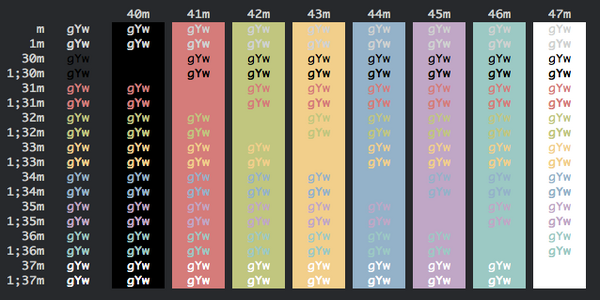
> There are [216+ color schemes](https://iterm2colorschemes.com/) for
|
|
> [iTerm2](./iterm2). Here's my shortlist. I chose them because they are easy on
|
|
> the eyes and distinct.
|
|
|
|
|
|
|
|
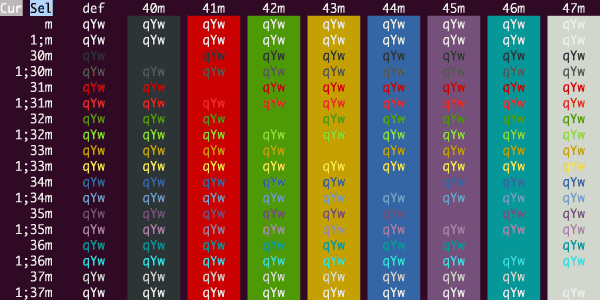
The installer will download them to `~/Downloads/webi/iterm2-themes`
|
|
|
|
```text
|
|
~/Downloads/webi/iterm2-themes/Tomorrow\ Night.itermcolors
|
|
~/Downloads/webi/iterm2-themes/Firewatch.itermcolors
|
|
~/Downloads/webi/iterm2-themes/Dracula.itermcolors
|
|
~/Downloads/webi/iterm2-themes/Elemental.itermcolors
|
|
~/Downloads/webi/iterm2-themes/Ubuntu.itermcolors
|
|
~/Downloads/webi/iterm2-themes/cyberpunk.itermcolors
|
|
~/Downloads/webi/iterm2-themes/Hivacruz.itermcolors
|
|
~/Downloads/webi/iterm2-themes/ToyChest.itermcolors
|
|
```
|
|
|
|
It's up to you to open them, and then iTerm2 will ask you to confirm.
|
|
|
|
```sh
|
|
open ~/Downloads/webi/iterm2-themes/*.itermcolors
|
|
```
|
|
|
|
### Previews
|
|
|
|
Two-finger click "Save Link As" (or similar) to download.
|
|
|
|
- <a href="/packages/iterm2/schemes/Tomorrow%20Night.itermcolors" download>Tomorrow
|
|
Night</a>
|
|

|
|
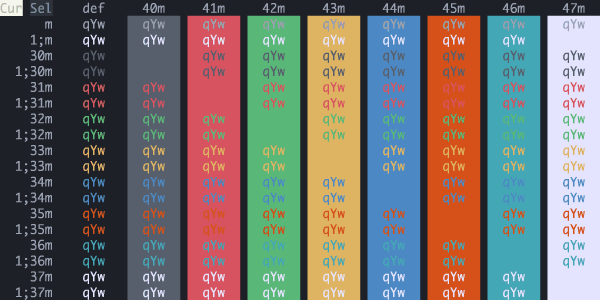
- <a href="/packages/iterm2/schemes/Firewatch.itermcolors" download>Firewatch</a>
|
|
|
|
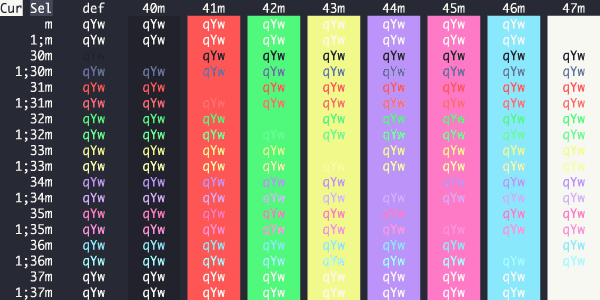
- <a href="/packages/iterm2/schemes/Dracula.itermcolors" download>Dracula</a>
|
|
|
|
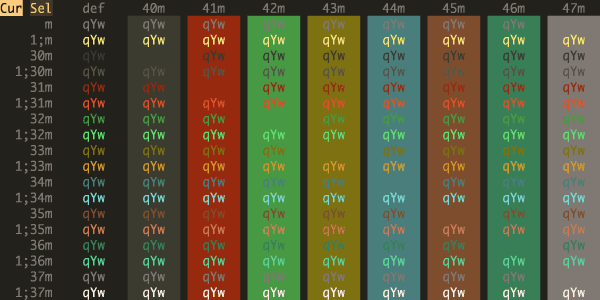
- <a href="/packages/iterm2/schemes/Elemental.itermcolors" download>Elemental</a>
|
|
|
|
- <a href="/packages/iterm2/schemes/Ubuntu.itermcolors" download>Ubuntu</a>
|
|
|
|
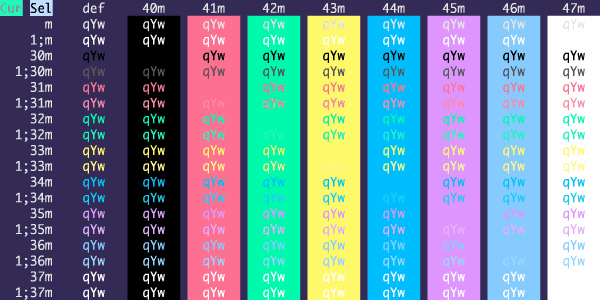
- <a href="/packages/iterm2/schemes/cyberpunk.itermcolors" download>cyberpunk</a>
|
|
|
|
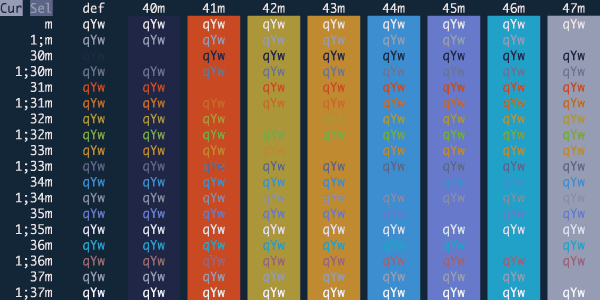
- <a href="/packages/iterm2/schemes/Hivacruz.itermcolors" download>Hivacruz</a>
|
|
|
|
- <a href="/packages/iterm2/schemes/Builtin%20Solarized%20Dark.itermcolors" download>Builtin
|
|
Solarized Dark</a>
|
|

|
|
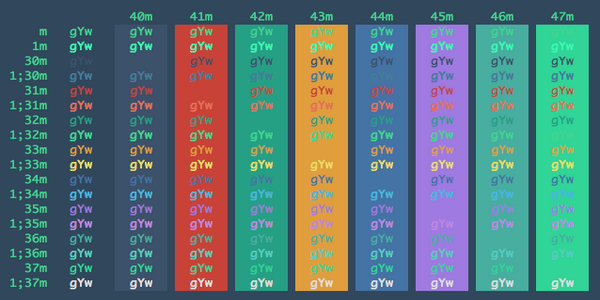
- <a href="/packages/iterm2/schemes/ToyChest.itermcolors" download>ToyChest</a>
|
|
(not for the colorblind)
|
|
|
|
|
|
<!--
|
|
Other considerations:
|
|
Grape
|
|
-->
|
|
|
|
If you're using [fish](https://webinstall.dev/fish) (as you should be!), be sure
|
|
to set your shell color theme to the same or similar:
|
|
|
|
```sh
|
|
fish_config colors
|
|
```
|
|
|
|
### How to set up profile switching
|
|
|
|
I suggest using different profiles:
|
|
|
|
- Default (no matching hosts)
|
|
- Local (matching my local `hostname`)
|
|
- Remote (matching `app@` for VPSes and cloud environments)
|
|
- Prod (matching specific `app@hostname`s for production systems)
|
|
- Root (matching `root@`)
|
|
|
|
You need to "Install Shell Integration" on each host for profile switching to
|
|
work.
|
|
|
|

|
|
|
|

|