
10 KiB
How it works
Flagger takes a Kubernetes deployment and optionally a horizontal pod autoscaler (HPA) and creates a series of objects (Kubernetes deployments, ClusterIP services and Istio virtual services) to drive the canary analysis and promotion.
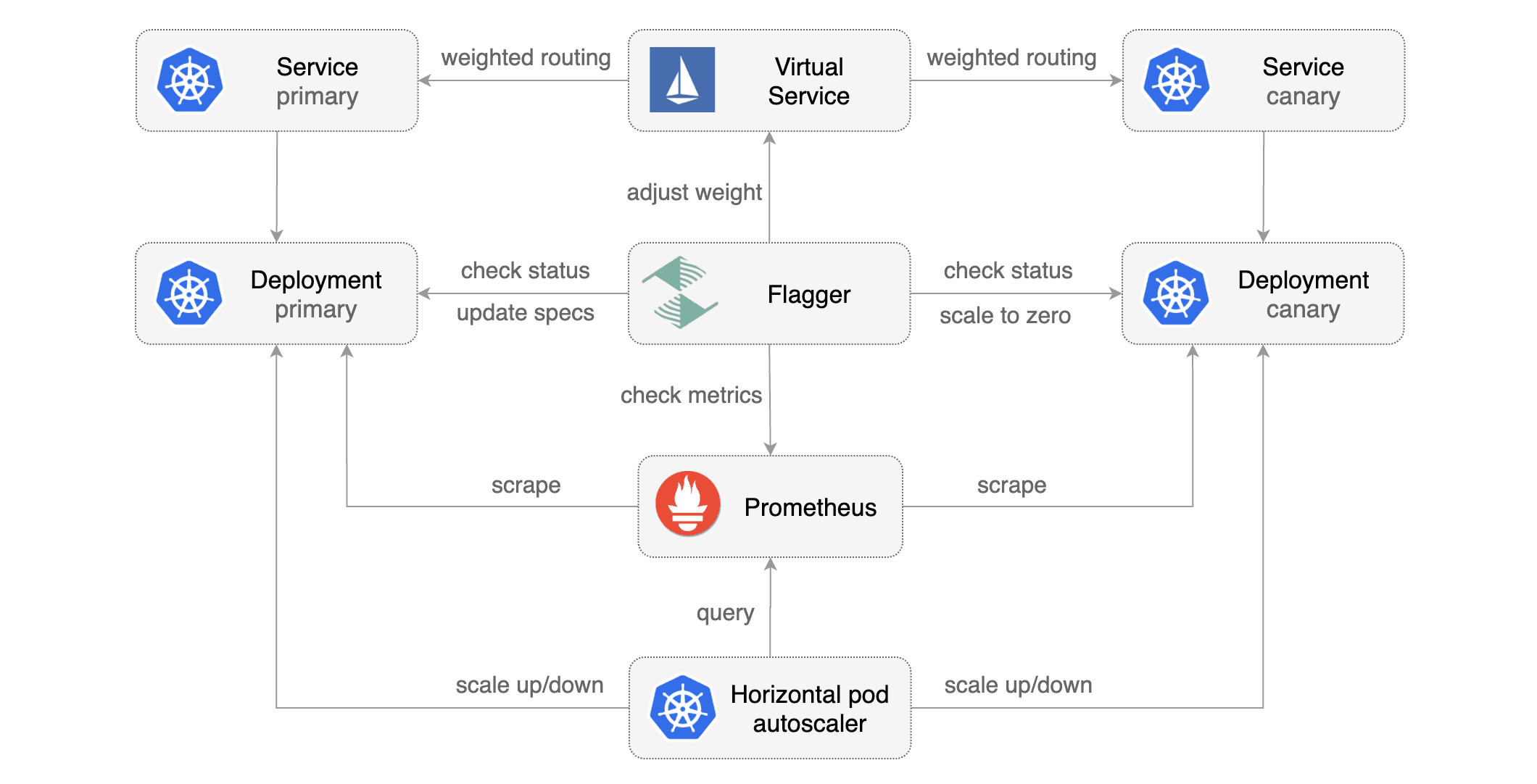
Canary Custom Resource
For a deployment named podinfo, a canary promotion can be defined using Flagger's custom resource:
apiVersion: flagger.app/v1alpha3
kind: Canary
metadata:
  name: podinfo
  namespace: test
spec:
  # deployment reference
  targetRef:
    apiVersion: apps/v1
    kind: Deployment
    name: podinfo
  # the maximum time in seconds for the canary deployment
  # to make progress before it is rollback (default 600s)
  progressDeadlineSeconds: 60
  # HPA reference (optional)
  autoscalerRef:
    apiVersion: autoscaling/v2beta1
    kind: HorizontalPodAutoscaler
    name: podinfo
  service:
    # container port
    port: 9898
    # Istio gateways (optional)
    gateways:
    - public-gateway.istio-system.svc.cluster.local
    # Istio virtual service host names (optional)
    hosts:
    - podinfo.example.com
  canaryAnalysis:
    # schedule interval (default 60s)
    interval: 1m
    # max number of failed metric checks before rollback
    threshold: 10
    # max traffic percentage routed to canary
    # percentage (0-100)
    maxWeight: 50
    # canary increment step
    # percentage (0-100)
    stepWeight: 5
    # Istio Prometheus checks
    metrics:
    - name: istio_requests_total
      # minimum req success rate (non 5xx responses)
      # percentage (0-100)
      threshold: 99
      interval: 1m
    - name: istio_request_duration_seconds_bucket
      # maximum req duration P99
      # milliseconds
      threshold: 500
      interval: 30s
    # external checks (optional)
    webhooks:
      - name: integration-tests
        url: http://podinfo.test:9898/echo
        timeout: 1m
        # key-value pairs (optional)
        metadata:
          test: "all"
          token: "16688eb5e9f289f1991c"
Note that the target deployment must have a single label selector in the format app: <DEPLOYMENT-NAME>:
apiVersion: apps/v1
kind: Deployment
metadata:
  name: podinfo
spec:
  selector:
    matchLabels:
      app: podinfo
  template:
    metadata:
      labels:
        app: podinfo
The target deployment should expose a TCP port that will be used by Flagger to create the ClusterIP Service and
the Istio Virtual Service. The container port from the target deployment should match the service.port value.
Canary Deployment
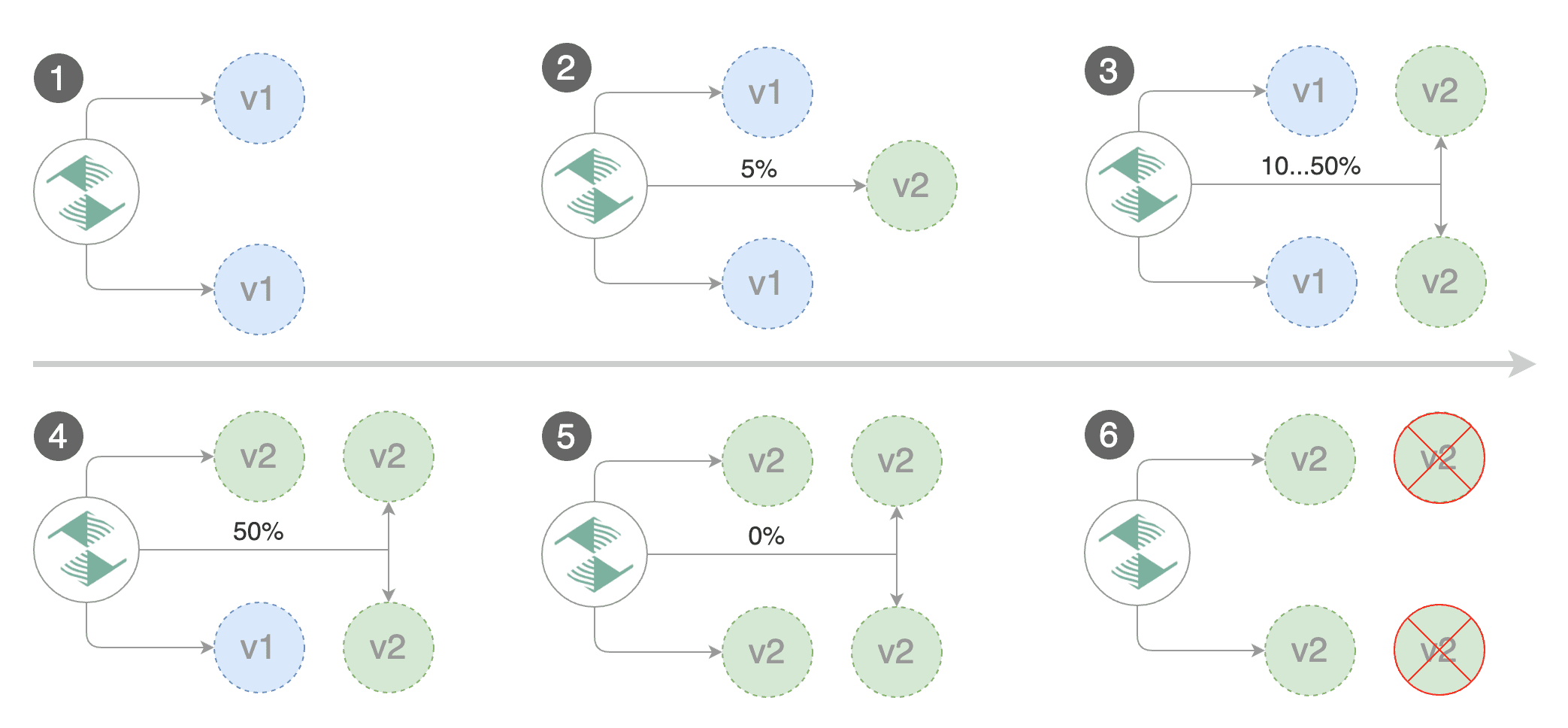
Gated canary promotion stages:
- scan for canary deployments
- creates the primary deployment if needed
- check Istio virtual service routes are mapped to primary and canary ClusterIP services
- check primary and canary deployments status
- halt advancement if a rolling update is underway
- halt advancement if pods are unhealthy
- increase canary traffic weight percentage from 0% to 5% (step weight)
- check canary HTTP request success rate and latency
- halt advancement if any metric is under the specified threshold
- increment the failed checks counter
- check if the number of failed checks reached the threshold
- route all traffic to primary
- scale to zero the canary deployment and mark it as failed
- wait for the canary deployment to be updated (revision bump) and start over
- increase canary traffic weight by 5% (step weight) till it reaches 50% (max weight)
- halt advancement if the primary or canary deployment becomes unhealthy
- halt advancement while canary deployment is being scaled up/down by HPA
- halt advancement if any of the webhook calls are failing
- halt advancement while canary request success rate is under the threshold
- halt advancement while canary request duration P99 is over the threshold
- promote canary to primary
- copy canary deployment spec template over primary
- wait for primary rolling update to finish
- halt advancement if pods are unhealthy
- route all traffic to primary
- scale to zero the canary deployment
- mark the canary deployment as finished
- wait for the canary deployment to be updated (revision bump) and start over
You can change the canary analysis max weight and the step weight percentage in the Flagger's custom resource.
Canary Analysis
The canary analysis runs periodically until it reaches the maximum traffic weight or the failed checks threshold.
Spec:
  canaryAnalysis:
    # schedule interval (default 60s)
    interval: 1m
    # max number of failed metric checks before rollback
    threshold: 10
    # max traffic percentage routed to canary
    # percentage (0-100)
    maxWeight: 50
    # canary increment step
    # percentage (0-100)
    stepWeight: 2
The above analysis, if it succeeds, will run for 25 minutes while validating the HTTP metrics and webhooks every minute. You can determine the minimum time that it takes to validate and promote a canary deployment using this formula:
interval * (maxWeight / stepWeight)
And the time it takes for a canary to be rollback when the metrics or webhook checks are failing:
interval * threshold
HTTP Metrics
The canary analysis is using the following Prometheus queries:
HTTP requests success rate percentage
Spec:
  canaryAnalysis:
    metrics:
    - name: istio_requests_total
      # minimum req success rate (non 5xx responses)
      # percentage (0-100)
      threshold: 99
      interval: 1m
Query:
sum(
    rate(
        istio_requests_total{
          reporter="destination",
          destination_workload_namespace=~"$namespace",
          destination_workload=~"$workload",
          response_code!~"5.*"
        }[$interval]
    )
)
/
sum(
    rate(
        istio_requests_total{
          reporter="destination",
          destination_workload_namespace=~"$namespace",
          destination_workload=~"$workload"
        }[$interval]
    )
)
HTTP requests milliseconds duration P99
Spec:
  canaryAnalysis:
    metrics:
    - name: istio_request_duration_seconds_bucket
      # maximum req duration P99
      # milliseconds
      threshold: 500
      interval: 1m
Query:
histogram_quantile(0.99,
  sum(
    irate(
      istio_request_duration_seconds_bucket{
        reporter="destination",
        destination_workload=~"$workload",
        destination_workload_namespace=~"$namespace"
      }[$interval]
    )
  ) by (le)
)
Note
that the metric interval should be lower or equal to the control loop interval.
Webhooks
The canary analysis can be extended with webhooks. Flagger will call each webhook URL and determine from the response status code (HTTP 2xx) if the canary is failing or not.
Spec:
  canaryAnalysis:
    webhooks:
      - name: integration-tests
        url: http://podinfo.test:9898/echo
        timeout: 30s
        metadata:
          test: "all"
          token: "16688eb5e9f289f1991c"
      - name: load-tests
        url: http://podinfo.test:9898/echo
        timeout: 30s
        metadata:
          key1: "val1"
          key2: "val2"
Note
that the sum of all webhooks timeouts should be lower than the control loop interval.
Webhook payload (HTTP POST):
{
    "name": "podinfo",
    "namespace": "test",
    "metadata": {
        "test":  "all",
        "token":  "16688eb5e9f289f1991c"
    }
}
Response status codes:
- 200-202 - advance canary by increasing the traffic weight
- timeout or non-2xx - halt advancement and increment failed checks
On a non-2xx response Flagger will include the response body (if any) in the failed checks log and Kubernetes events.
Load Testing
For workloads that are not receiving constant traffic Flagger can be configured with a webhook, that when called, will start a load test for the target workload. If the target workload doesn't receive any traffic during the canary analysis, Flagger metric checks will fail with "no values found for metric istio_requests_total".
Flagger comes with a load testing service based on rakyll/hey that generates traffic during analysis when configured as a webhook.
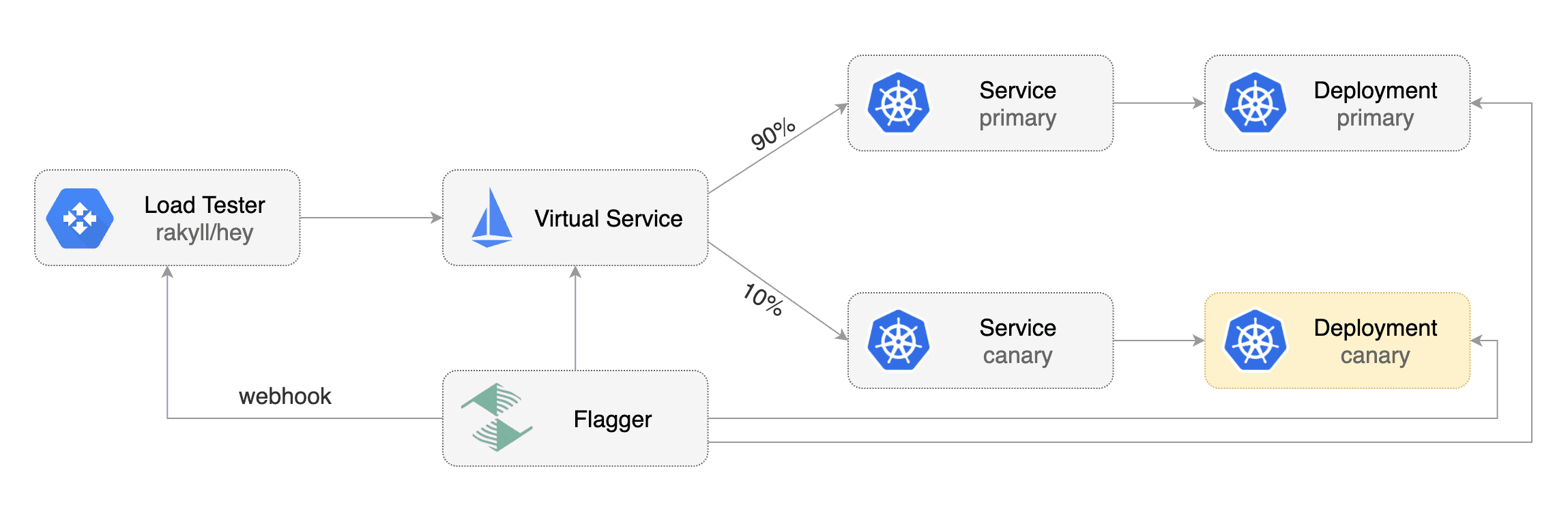
First you need to deploy the load test runner in a namespace with Istio sidecar injection enabled:
export REPO=https://raw.githubusercontent.com/stefanprodan/flagger/master

kubectl -n test apply -f ${REPO}/artifacts/loadtester/deployment.yaml
kubectl -n test apply -f ${REPO}/artifacts/loadtester/service.yaml
Or by using Helm:
helm repo add flagger https://flagger.app

helm upgrade -i flagger-loadtester flagger/loadtester \
--namepace=test \
--set cmd.logOutput=true \
--set cmd.timeout=1h
When deployed the load tester API will be available at http://flagger-loadtester.test/.
Now you can add webhooks to the canary analysis spec:
webhooks:
  - name: load-test-get
    url: http://flagger-loadtester.test/
    timeout: 5s
    metadata:
      cmd: "hey -z 1m -q 10 -c 2 http://podinfo.test:9898/"
  - name: load-test-post
    url: http://flagger-loadtester.test/
    timeout: 5s
    metadata:
      cmd: "hey -z 1m -q 10 -c 2 -m POST -d '{test: 2}' http://podinfo.test:9898/echo"
When the canary analysis starts, Flagger will call the webhooks and the load tester will run the hey commands
in the background, if they are not already running. This will ensure that during the
analysis, the podinfo.test virtual service will receive a steady steam of GET and POST requests.
If your workload is exposed outside the mesh with the Istio Gateway and TLS you can point hey to the
public URL and use HTTP2.
webhooks:
  - name: load-test-get
    url: http://flagger-loadtester.test/
    timeout: 5s
    metadata:
      cmd: "hey -z 1m -q 10 -c 2 -h2 https://podinfo.example.com/"
The load tester can run arbitrary commands as long as the binary is present in the container image.
For example if you you want to replace hey with another CLI, you can create your own Docker image:
FROM quay.io/stefanprodan/flagger-loadtester:<VER>

RUN curl -Lo /usr/local/bin/my-cli https://github.com/user/repo/releases/download/ver/my-cli \
    && chmod +x /usr/local/bin/my-cli