
7.8 KiB
Deployment Strategies
Flagger can run automated application analysis, promotion and rollback for the following deployment strategies:
- Canary release (progressive traffic shifting)
- Istio, Linkerd, App Mesh, NGINX, Contour, Gloo
- A/B Testing (HTTP headers and cookies traffic routing)
- Istio, App Mesh, NGINX, Contour
- Blue/Green (traffic switch)
- Kubernetes CNI, Istio, Linkerd, App Mesh, NGINX, Contour, Gloo
- Blue/Green (traffic mirroring)
- Istio
For Canary releases and A/B testing you'll need a Layer 7 traffic management solution like a service mesh or an ingress controller. For Blue/Green deployments no service mesh or ingress controller is required.
A canary analysis is triggered by changes in any of the following objects:
- Deployment PodSpec (container image, command, ports, env, resources, etc)
- ConfigMaps mounted as volumes or mapped to environment variables
- Secrets mounted as volumes or mapped to environment variables
Canary Release
Flagger implements a control loop that gradually shifts traffic to the canary while measuring key performance indicators like HTTP requests success rate, requests average duration and pod health. Based on analysis of the KPIs a canary is promoted or aborted.
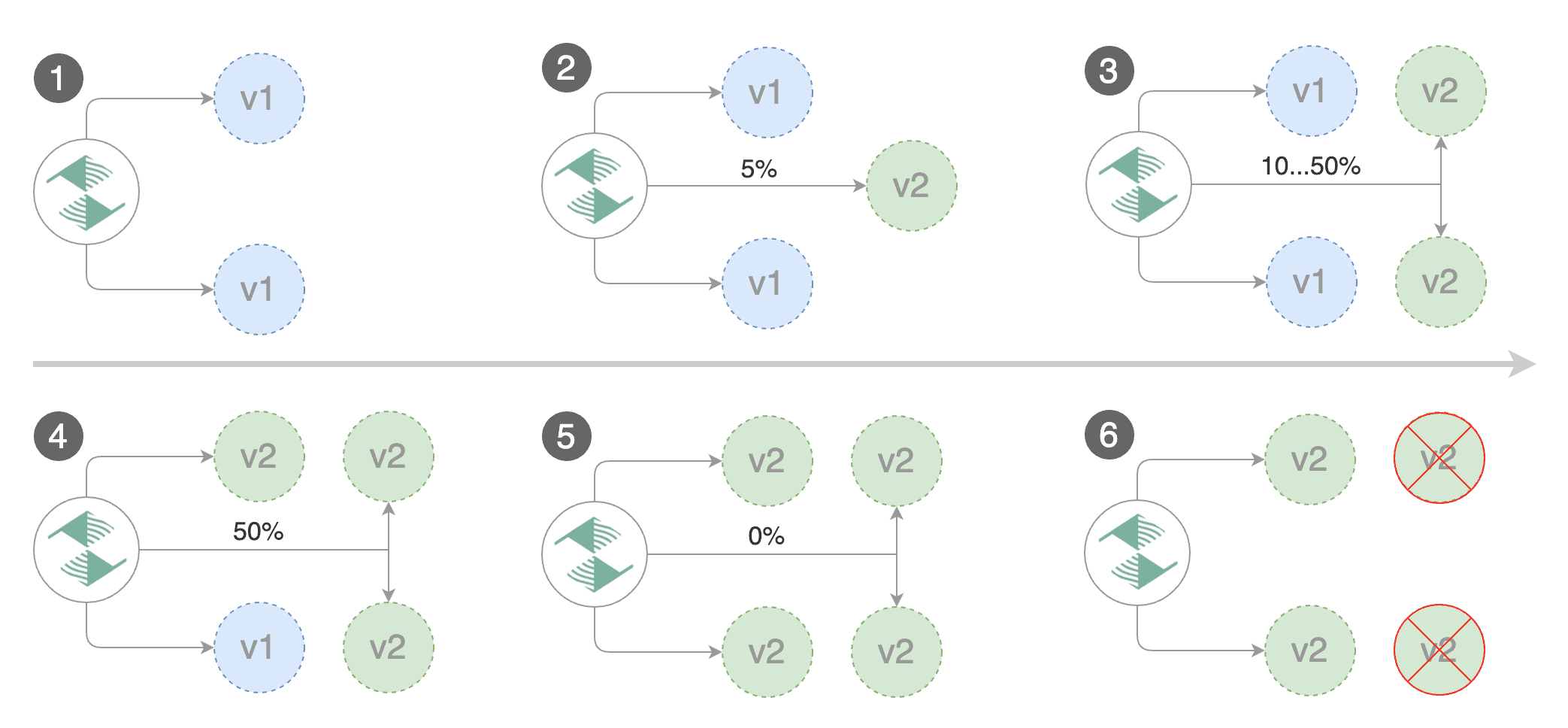
The canary analysis runs periodically until it reaches the maximum traffic weight or the failed checks threshold.
Spec:
  canaryAnalysis:
    # schedule interval (default 60s)
    interval: 1m
    # max number of failed metric checks before rollback
    threshold: 10
    # max traffic percentage routed to canary
    # percentage (0-100)
    maxWeight: 50
    # canary increment step
    # percentage (0-100)
    stepWeight: 2
  # deploy straight to production without
  # the metrics and webhook checks
  skipAnalysis: false
The above analysis, if it succeeds, will run for 25 minutes while validating the HTTP metrics and webhooks every minute. You can determine the minimum time that it takes to validate and promote a canary deployment using this formula:
interval * (maxWeight / stepWeight)
And the time it takes for a canary to be rollback when the metrics or webhook checks are failing:
interval * threshold
In emergency cases, you may want to skip the analysis phase and ship changes directly to production.
At any time you can set the spec.skipAnalysis: true.
When skip analysis is enabled, Flagger checks if the canary deployment is healthy and
promotes it without analysing it. If an analysis is underway, Flagger cancels it and runs the promotion.
A/B Testing
For frontend applications that require session affinity you should use HTTP headers or cookies match conditions to ensure a set of users will stay on the same version for the whole duration of the canary analysis.
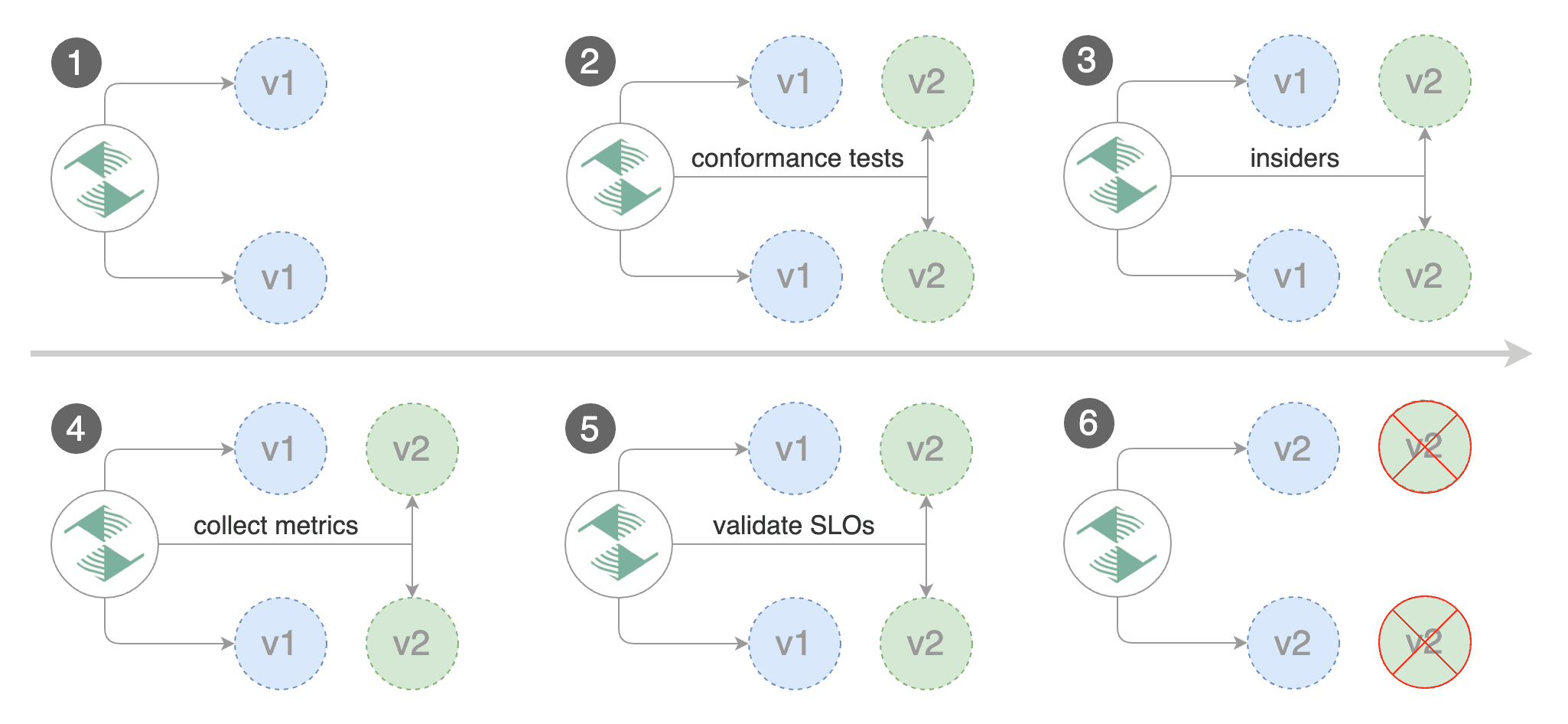
You can enable A/B testing by specifying the HTTP match conditions and the number of iterations.
If Flagger finds a HTTP match condition, it will ignore the maxWeight and stepWeight settings.
Istio example:
  canaryAnalysis:
    # schedule interval (default 60s)
    interval: 1m
    # total number of iterations
    iterations: 10
    # max number of failed iterations before rollback
    threshold: 2
    # canary match condition
    match:
      - headers:
          x-canary:
            regex: ".*insider.*"
      - headers:
          cookie:
            regex: "^(.*?;)?(canary=always)(;.*)?$"
The above configuration will run an analysis for ten minutes targeting the Safari users and those that have a test cookie. You can determine the minimum time that it takes to validate and promote a canary deployment using this formula:
interval * iterations
And the time it takes for a canary to be rollback when the metrics or webhook checks are failing:
interval * threshold
App Mesh example:
  canaryAnalysis:
    interval: 1m
    threshold: 10
    iterations: 2
    match:
      - headers:
          user-agent:
            regex: ".*Chrome.*"
Note that App Mesh supports a single condition.
Contour example:
  canaryAnalysis:
    interval: 1m
    threshold: 10
    iterations: 2
    match:
      - headers:
          user-agent:
            prefix: "Chrome"
Note that Contour does not support regex, you can use prefix, suffix or exact.
NGINX example:
  canaryAnalysis:
    interval: 1m
    threshold: 10
    iterations: 2
    match:
      - headers:
          x-canary:
            exact: "insider"
      - headers:
          cookie:
            exact: "canary"
Note that the NGINX ingress controller supports only exact matching for a single header and the cookie value is set to always.
The above configurations will route users with the x-canary header or canary cookie to the canary instance during analysis:
curl -H 'X-Canary: insider' http://app.example.com
curl -b 'canary=always' http://app.example.com
Blue/Green Deployments
For applications that are not deployed on a service mesh, Flagger can orchestrate blue/green style deployments with Kubernetes L4 networking. When using Istio you have the option to mirror traffic between blue and green.
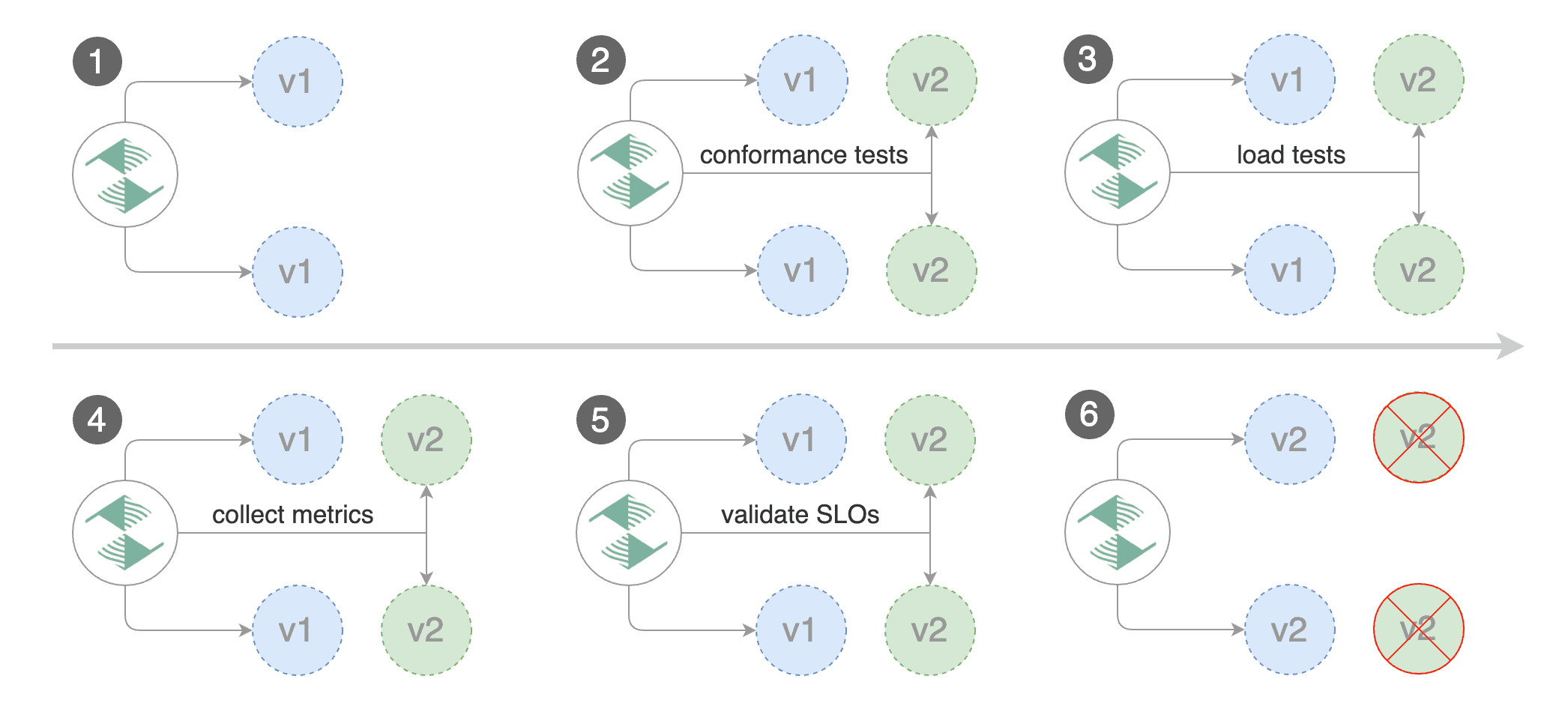
You can use the blue/green deployment strategy by replacing stepWeight/maxWeight with iterations in the canaryAnalysis spec:
  canaryAnalysis:
    # schedule interval (default 60s)
    interval: 1m
    # total number of iterations
    iterations: 10
    # max number of failed iterations before rollback
    threshold: 2
With the above configuration Flagger will run conformance and load tests on the canary pods for ten minutes. If the metrics analysis succeeds, live traffic will be switched from the old version to the new one when the canary is promoted.
The blue/green deployment strategy is supported for all service mesh providers.
Blue/Green rollout steps for service mesh:
- scale up the canary (green)
- run conformance tests for the canary pods
- run load tests and metric checks for the canary pods
- route traffic to canary
- promote canary spec over primary (blue)
- wait for primary rollout
- route traffic to primary
- scale down canary
After the analysis finishes, the traffic is routed to the canary (green) before triggering the primary (blue) rolling update, this ensures a smooth transition to the new version avoiding dropping in-flight requests during the Kubernetes deployment rollout.
Blue/Green with Traffic Mirroring
Traffic Mirroring is a pre-stage in a Canary (progressive traffic shifting) or Blue/Green deployment strategy. Traffic mirroring will copy each incoming request, sending one request to the primary and one to the canary service. The response from the primary is sent back to the user. The response from the canary is discarded. Metrics are collected on both requests so that the deployment will only proceed if the canary metrics are healthy.
Mirroring must only be used for requests that are idempotent or capable of being processed twice (once by the primary and once by the canary). Reads are idempotent. Before using mirroring on requests that may be writes, you should consider what will happen if a write is duplicated and handled by the primary and canary.
To use mirroring, set spec.canaryAnalysis.mirror to true.
Istio example:
  canaryAnalysis:
    # schedule interval (default 60s)
    interval: 1m
    # total number of iterations
    iterations: 10
    # max number of failed iterations before rollback
    threshold: 2
    # Traffic shadowing (compatible with Istio only)
    mirror: true